
Solo Filmmaking with the DJI Pocket 3, Action 4, and Osmo Mobile 6
1.2K Video Views·Sep 22, 2024
[Music]
and you know what they say it's all
about those small improvements every day
it was a great session thank you guys
for tuning in and see you in the next
one peace
[Music]
it is really great to be alive in this
era where technology allows anyone to
make high quality videos with just a few
simple tools and with the launch of the
DJI osmo Paka 3 Oso action 4 and the
osmo mobal 6 solo filmmakers have even
more option to choose from look at the
exposure I'm just going to eat my cereal
and wait
until the sun is covered now one thing I
really hate is when it's cloudy outside
and I want to use natural light and you
know the exposure keeps changing my
struggle is real man now a few weeks ago
I ran a workshop at I in Berlin for DJI
demonstrating how to use their handheld
products to easily create engaging
videos and the basketball video you saw
at the beginning was filmed entirely
with these three products and it only
took me like an hour to shoot by myself
and this shows how versatile and easy to
use these devices are making them them
great for solo film making now I'm not
here to tell you to use all three
cameras but to inspire you with what you
can achieve by being creative and maybe
you even own one of these cameras so in
this video I'll talk about my experience
shooting the basketball scene with these
products and give you tips for getting
the best results in Solo film making so
you can use them in your own projects
now before we begin this this video is
sponsored by motion array an all-in-one
platform for creators offering digital
assets to elevate your cont content more
to them later now as a content creator
myself making videos involves a lot of
work and to keep it sustainable you need
to balance efficiency and quality and I
believe compact cameras are really key
for Content creators especially solo
filmmakers because they help save time
while still delivering great results and
here's why first of all the portability
compact cameras like the osmo pocket 3
osmo action 4 and osmo mobile 6 are
small and light making them easy to
carry and use anywhere second is
versatility these cameras can handle a
variety of filming situations from
vlogging to action shots to cinematic
seats and then third the ease of use
with their simple interface and extended
features which we will get into uh these
compact cameras make it easy for anyone
to create professional looking videos
without the need of extensive technical
knowledge so let me share with you my
experience of filming the basketball
scene with the DJI osmo series and I'll
break down each shot to show you how I I
did it and what settings I use now don't
forget all the products mentioned will
be in the video description below so I'd
like to start by sharing the basic
camera settings I use for all my cameras
so I set the resolution to 4K and the
frame rate to 25 frames per second
shooting in 4k gives me the best quality
and lets me adjust the framing if the
shot isn't perfect now since I'm in a
pal region I choose 25 frames per second
especially if I don't plan to slow down
the footage I like this frame rate for
Vlogs because it looks more cinematic
than 30 or 50 frames per second now as
for the shutter speed I keep it double
of the frame rate for example if I'm
recording in 25 frames per second I set
the shutter speed to 1 over 50 and this
helps create a natural motion blur
making the shot look more cinematic to
compensate for the exposure I use an ND
filter for the picture profile I record
in dlog M1 bit color on my osmo cameras
however since I couldn't find a log
option in the DJI mimo app when
connected to my iPhone 15 Pro Max I use
the standard Apple picture profile
instead I prefer shooting in log
whenever possible because it gives me
more flexibility in post- production
when color grading for stabilization it
varies by shot generally I turn off
image stabilization for static shots
this helps avoid cropping in the frame
and lets me use the full sensor size so
let's talk about how I filmed the
basketball scene starting with the DJI
osmo action 4 the first shot I used a
head strap to get a point of view
perspective once the strap is on your
head it can be tricky to see what you're
filming the best way to keep an eye on
your shot is to connect the action
forward to the DJI mimo app for a real
time View and this way you can easily
adjust your framing as needed for the
second shot I used a suction cup to
mount the camera High getting a top-
down view now the action 4 has a
155° Ultra wide angle view which allowed
me not only to capture the basket but
also me as the subject with the DJI mimo
app I could easily start recording in
from a distance third shot I got a bit
more creative and strapped the head
strap around the basketball to capture a
unique perspective from the ball and
this created some really interesting
shot and added variety to the scene
keeping the viewer engaged and for the
last shot I used a regular scrap and
attach it to the cup and this again
offered a view that you usually wouldn't
see the front screen was also useful
because it showed me exactly how the
shot would look in action now a key
element that brings your video to live
is the editing you can enhance your
video with titles animation music and
sound effects to share your message
effectively and that's where our sponsor
of today's video motion array comes in
it's an all-in-one platform with a vast
library of media assets for your project
finding those digital assets is super
easy if you want to use a title template
like the one I used at the beginning
just head to the template section choose
your software and you'll find different
filters under the categories I pick
titles and if I'm looking for something
specific specific I can use the search
bar once I find a title I like I click
and download it then I just drag and
drop it onto my timeline name it and I'm
good to go this saves you time and makes
your videos look great without having to
create an animated title from scratch
many packs also include extras like
overlays and backgrounds giving you more
choices and helping your vide stand out
now motion offers a variety of creative
assets for you to explore it's a
membership service with unlimited
downloads without you having to worry
about copy right issues I highly
recommend checking out motion Ray's huge
collection of resources they will help
you work more efficiently and improve
your editing skills plus if you use the
link in the video description below you
can get $50 off the annual plan with
that said let's continue so next up
let's look at how I use the DJI pocket 3
for the first shot I plac the pocket 3
on the ground using its tripod legs to
achieve a static shot of me walking to
the basketball field again I used the
DJI mimo app to frame myself for shot
number two I wanted to add more movement
so I took a low angle chot of myself
with active track on and this helped
keep me centered in the frame I've also
connected the DJI mimo app to the pocket
3 to check the exposure which can be
tricky on a small screen with tools like
histogram and zebra you can ensure your
shots aren't too bright or too dark in
shot number three I wanted to finish the
video with a vlog and that's where the
pocket 3 really stands out with product
showcase mode on it keeps the subject in
Focus while bluring ing the background
helping viewers Focus their attention on
me and it's also great that I can
connect it to the DJI mic to transmitter
via Bluetooth so I don't need a receiver
to get good audio quality now as a pro
tip I mounted the mic at chest height to
keep it out of the frame moving on to
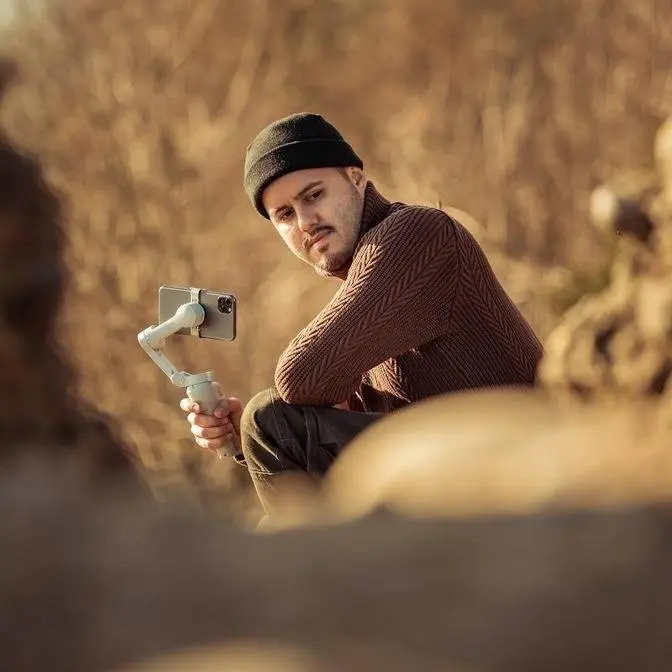
the DJI osmo mobile 6 that I used with
the iPhone 15 Pro Max in the first shot
which is one of my favorites I recorded
a 50 frames per second video from a low
angle while jumping over the gimbal now
it was difficult to see the screen from
that angle but I controlled the gimbal
with the DJI mimo app on my Apple watch
and this also gave me a real time
preview if you want to learn more about
this feature I have a dedicated video on
it at the end of this video for shot
number two I used the active track
feature on the DJI mimo app I've
activated it through my Apple watch and
previewed the shot as well and this
helped me add some movement to my shot
while keeping myself centered in the
frame for my third shot I use the
built-in extension pole and turn my
phone around to take a low shot of my
shoes while dribbling the basketball and
this would have been really hard to do
with just the phone alone okay so now
that you understand how I achieved each
of those shots let's wrap it up with a
behind the scenes look including the
corresponding shots and the settings
used
n
[Music]
oh
m
[Music]
all right guys I hope this helped you
understand how to use these compact
cameras to achieve a cinematic look in
your videos if you want to see how I use
the Apple watch with the DJI osmo mobile
6 be sure to check out this video right
here to learn more other than that thank
you so much for watching and see you in
the next one
[Music]
[Applause]
[Music]