DISCLAIMER Some links are affiliate links, where I earn a small commission if you click on the link and purchase an item. You are not obligated to do so, but it does help support this YouTube channel and allow me to continue making videos for you. I appreciate your support!
[Music]
[Music]
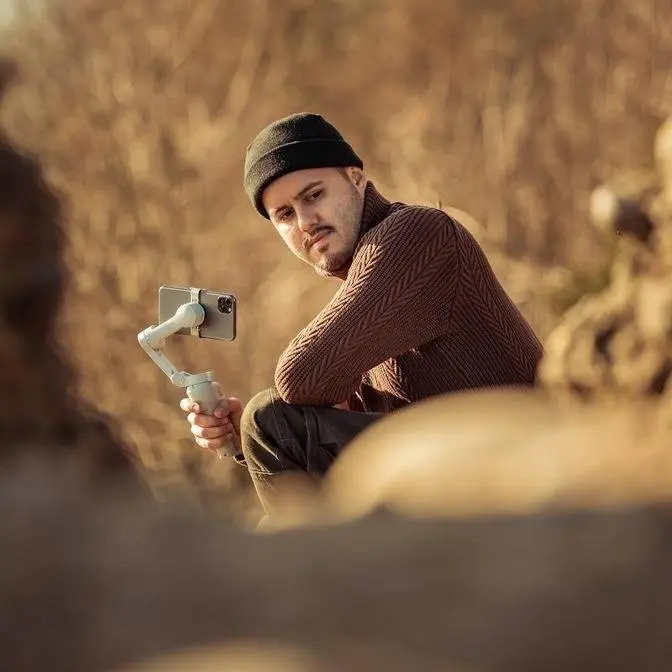
this right here is the insta 360 flow 2
Pro and it's packed with a ton of
features that make filming yourself
really easy and let's be honest filming
yourself can be a daunting task
especially if you don't have anybody to
help you but that is because I don't
have any friends so with that said in
today's video I'll be showing you how to
use the flo 2 Pro to get creative solo
b-roll shots of yourself let's get
started so let's first start off with
the camera settings now I'll be using
the insta 360 app with the flow 2 Pro
because this gives me all of the
advanced functions that I need as for
the resolution and frame rate I'll be
shooting in 4k 25 frames per second 4K
gives me the highest quality possible it
also allows me to reframe the shot
without losing much quality and 25
frames per second is the regular speed
where I don't plan on slowing down the
footage if I do want the slow motion
effect in my video I can shoot in 60
frames per second now I'll be leaving
everything in Auto because I want to
keep this as simple as possible but if
you do want more control you can always
switch to manual if needed but for now
I'm going to leave it in Auto the only
thing to remember is whenever possible
try to lock the focus and exposure by
tap holding on the screen until Auto
exposure and autofocus is locked this
way you don't have exposure shifts in
your video so let's check out the gimbal
settings now I won't go through
everything I'll just show you the ones
that I find most important but if you do
want to learn more I actually have a
dedicated video going through all of the
settings when using the flow 2 Pro now
the flow mode I keep in Auto especially
if you're a beginner I think this is a
great mode as it automatically adjusts
the Tilt and pan axis based on your
movements let's now move on to the
general settings I enable git this gives
me the rule of thirds to better compose
my shots now I'll be shooting in the
standard picture profile but if you want
to shoot in apple PR res you can do that
just keep in mind that it will take up a
lot of storage and it's best to use it
with an external SSD but like I said I'm
going to keep this simple and just
record in the standard picture profile
so yeah there we have it these are the
basic settings that I'll be using so
let's talk about the accessories that
I'm using that make filming myself more
convenient so first up is the magnetic
phone mount and this is mag safe
compatible so I can just simply attach
it to the back you can see it doesn't
take up much space I can easily fit it
into my pocket and what I really like
about this is that I can unfold this
part and it also functions as a stand
then I have this awesome backpack Mount
which allows me to quickly attach the
gimbal to my sling bag this way I have
both of my pockets free to put in other
stuff and I'm also really quick in
capturing moments I can just take this
one off attach my phone to it unfold it
and I'm good to go and once I'm done I
can turn it off uh fold it back
in attach this to my backpack Mount and
that's it another accessory that I found
really helpful for filming yourself is
using the Apple watch and pairing it
with the flow 2 Pro you can simply
download the app and then open it up and
as you can see I get a live preview of
what the camera is seeing and this is
especially useful when you're filming
yourself from a distance where you can
use the Apple watch to monitor yourself
and set your composition you can also
control the gimbal by swiping left right
up or down on the screen
it adjusts the position and also if I
need to reenter the gimbal I can just
press this button over here and it will
do so and I can also enable tracking by
pressing this button over here and now
the camera starts following me keeping
me centered in the frame I can also
start and stop recording over
here now if you don't have an Apple
Watch don't worry you can still use the
guesture control up here I enable single
person tracking and start recording so
if I just want to start recording I can
hold up the pie sign will countdown and
now it will start recording if I want to
stop it just hold up the P sign again
and if I want to track and start
recording I can hold up my palm we'll do
the countdown again this time it will
track me keeping me centered in the
frame and also start recording so you
can really use this to your advantage
when filming yourself now something else
that is really great on the flo 2 Pro is
that one once I start recording the
white LED indicator will start blinking
and this tells me that a video is being
recorded and if I stop the recording the
LED will turn solid white now if you're
wondering the sling bag I'm using is
from Think Tank I really like this one
because if I need something I can just
pull this to the front unzip this and
then grab whatever I need now before I
used to use a backpack but whenever I
bring this out with me I'm kind of
forced to bring bring only the necessary
gear that I need now by the way I will
leave links to all the products
mentioned in the video description below
so for first shot I would like to
introduce the scene by creating a crane
shot and what I like about the flow 2
Pro is that it features a so-called free
tilt mode now let me just quickly show
you how I enter free tilt mode to do so
simply extend this part and then you
want to turn this away from you and then
take this part and angle it to towards
you and after that I can turn this part
down and you'll hear a click sound and
you can now see that we've entered free
tilt mode and by double pressing the
trigger button I can reenter the Gimbal
and from here on I can press hold the
trigger button this locks all Motors and
I can then move the camera up or down
and it will stay fixed at its position
so I'm going to get low to the ground
you can see we have a little bit of
foreground I'm going to tilt the camera
up a little bit I'm going to press hold
the trigger button start the recording
and then slowly lift up the camera and
[Music]
go so the next one will be more of a
static shot I've placed the flo2 pro on
the ground using the built-in tripod
legs and I've also framed the shot using
the joystick so this to me looks really
great and I'll be passing by with my car
what I'm also going to do is set and
lock the focus and exposure which will
be right over
[Music]
[Applause]
here so since we have a shot of the car
moving across the frame it would be
great to have a shot of the car moving
moving I don't recommend you do this on
a highway on or on a busy street but on
a road like this where there almost no
cars passing by I allow myself to do
this so the idea would be to extend the
pole all the way and then position the
gimbal upside down to record the vehicle
moving and what's really cool is that I
have my Apple watch attached to the
steering wheel and by opening up the Ina
360 app I now get a live preview of how
it would look like and I've also set the
gimbal to pan follow this way it won't
tilt up and
[Music]
down so for my next shot I will be
tracking my car as I drive into the
parking lot and for that I'll be using
the ultra wide angle lens and simply
draw a box around my car and I will also
enable tracking plus uh and this is
great for when shooting on a tripod and
through the tracking I can create some
camera movements in my
shot so as for my next shot I will be
creating a selfie shot of me getting out
of the car and for that I'll be using
the rear camera so I'll simply triple
press and then press the trigger button
one more time to enable tracking this
will keep me centered in the frame and
also by using the extension pole I can
fit more in the frame and be further
away from the camera so let's do that
I'm going to start
[Music]
recording next I'm going to make use of
the auto pan by short pressing the C
button one once I press it it will start
recording and then do a 360° recording
and I'm going to use this to walk on
this path and also show the surrounding
and I've positioned in a way so that
this would be the starting and end point
so I have to be really quick once I
press the C button it will start
recording and rotate the camera I'm
going to be using the 1X lens and
shooting this in 4k 30 frames for a
second this way I can slow it down a
little bit because I think the panning
is a bit too fast action
[Music]
[Applause]
[Music]
[Applause]
[Music]
so now that we have a shot of me walking
along this path I want to create another
shot as I walk I'm simply going to
record my footsteps so I'm simply going
to extend the pole put the camera upside
down and
[Music]
go while we're at it I'm also going to
create a parallax selfie shot again I'll
be using the extension pull and angle it
towards me and then press the trigger
button three times
to use the rear camera I'm also going to
press the trigger button one more time
so that I can track myself and keep me
centered in the frame and as I walk I'm
actually going to keep it a little bit
lower so that we can see also the trees
and as I walk I'm going to turn my head
to the left and then move the gimbal at
the same time to the right my signature
move I think I'm going to record this in
4k 30 frames per second just to slow it
down a bit and make it look smoother
start recording and
[Applause]
[Music]
[Applause]
go so for this shot I'm simply going to
capture some of these surroundings and
I'm simply going to create a slide shot
this way I can add some foreground
movement I will be recording in 4k 60
frames per second this way I can slow it
down later in the edit so I'll be
standing over here I'll be using the 2x
lens I will tap hold to set and lock the
exposure and focus and I will also press
hold the trigger button to lock all of
the motors start recording and slowly
walk from left to
[Music]
right you see how we have forr in the
shut
now another interesting shot would be to
have the camera close to the tree and
pushing upwards now doing this handheld
is quite a challenge but when using the
flo 2 Pro it's actually quite easy as I
can extend the pole angle it and we're
going to enter free tilt mode position
it this way I will be using the ultra
wide angle lens I will be recording in
4k 60 frames per second and then slowly
pushing up up as the camera rolls and I
can do that with the joystick so I will
start recording and then press the
joystick to slowly rotate the
gimbal so this will be the ending shot
and what I'm going to do is stand on top
of that cut off tree and then slowly
tilt up the camera using my Apple watch
to reveal the location and myself which
I think would make a great ending shot I
have my Apple watch connected to the
flow 2 Pro as you can see I get a live
preview and can also control the gimble
using the touch display now before I
start I make sure to lock the focus and
exposure and then I'm going to angle the
camera downwards and I think this should
look great
[Music]
all right folks there you have it that
is how you use the floow to Pro to
create Dynamic solo be rolls of yourself
now if you if you do have questions feel
free to leave a comment and if you want
to learn more about the flo 2 Pro I
actually have another video for you guys
right over here I guess that you can
check out other than that thank you so
much for watching and see you in the
next one
[Music]